Ecosystem & Troubleshooting

5GHz WiFi Pet Feeder Connection: Why Smart Feeders Won’t Connect to 5G

By Sam Kerrow Sam Kerrow Updated

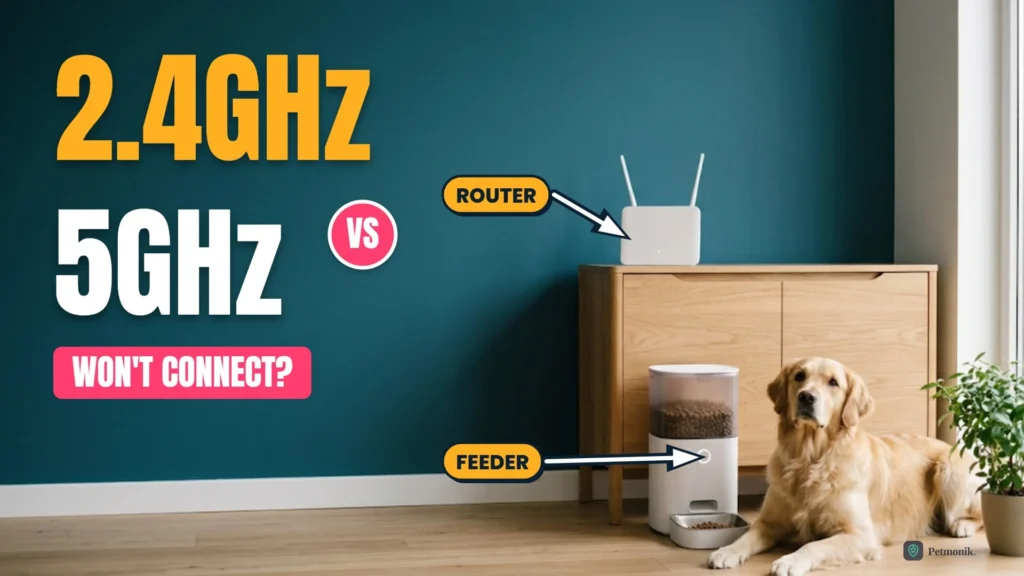
White Wi-Fi router on an oak sideboard next to a smart pet feeder with a golden retriever, against a teal wall, with 2.4GHz vs 5GHz title

You paste in your Wi-Fi password, the app spins for a minute, and then it fails again: “Unable to connect.” Your phone is on the fast 5 GHz network, the router is two metres away, and the feeder still won’t join. The cause is usually the band, not the feeder. A 5GHz WiFi pet feeder connection is possible on some models, but many smart feeders only speak 2.4 GHz, and a router that hides the difference makes the problem look random. Below we break down which smart feeders support dual-band Wi-Fi versus 2.4 GHz only, why dual-band routers disrupt pairing, and how to configure your network cleanly.

Quick Summary: Will My Feeder Connect to 5G?

  • Most feeders need 2.4 GHz. Petlibro’s Polar wet food feeder is documented as 2.4 GHz only, and PETKIT’s support page tells owners to use a 2.4 GHz network.
  • Some newer models list both bands. Petlibro’s Granary (PLAF103) lists 5 GHz and 2.4 GHz, so check your model before assuming either way.
  • The router is the usual culprit. When one network name covers both bands, the app and the feeder can end up on different ones.
  • Fastest fix: temporarily split the bands into two network names, join your phone to the 2.4 GHz one, then pair the feeder.

Why Smart Feeders Often Won’t Connect to 5G

Wi-Fi runs on two common bands, and they trade range for speed. At the same transmit power, lower-frequency 2.4 GHz waves travel farther and penetrate walls far better than 5 GHz signals, which matters for compact IoT radios. Dedicated 2.4 GHz chipsets also cost less and use less standby power, while smart sensors and feeders transmit small packets that never need 5 GHz bandwidth.

A feeder fits the same pattern. It sends short status messages and receives feeding commands, and it usually sits in a kitchen or utility room, one of the hardest places for a 5 GHz signal to reach. A camera feeder streams video, which is where a faster band can help, and that may be why some camera models now list both bands.

2.4 GHz5 GHz
Range and wallsTravels farther and passes through walls betterShorter range, weaker through walls
SpeedSlower peak speedFaster data transfer
Hardware costCheaper radio hardwareMore expensive radio hardware
Fit for a feederEnough for commands and status; the default for most feedersUseful for video; supported only on some models
CrowdingOnly three non-overlapping channels (1, 6, 11 in North America), plus Bluetooth and neighbour interferenceCheck a Wi-Fi analyser app for your own environment

Comparison of 2.4 GHz and 5 GHz radio trade-offs for smart pet devices. Real-world range depends on wall materials and local channel congestion.

Which Pet Feeders Support 5GHz Wi-Fi?

Wi-Fi chipset support varies by model and hardware generation:

FeederSupported Wi-Fi BandPairing Notes
Petlibro Granary (PLAF103)Dual-band (2.4 GHz & 5 GHz)Supports both bands on Wi-Fi and Camera editions
Petlibro Polar Wet Food Feeder2.4 GHz onlyWill not detect or join 5 GHz SSIDs
Petlibro Air Smart Feeder2.4 GHzPair and reconnect on a dedicated 2.4 GHz SSID
PETKIT YumShare Dual-hopper (P591)2.4 GHz onlyFirst-generation P591 radio is single-band
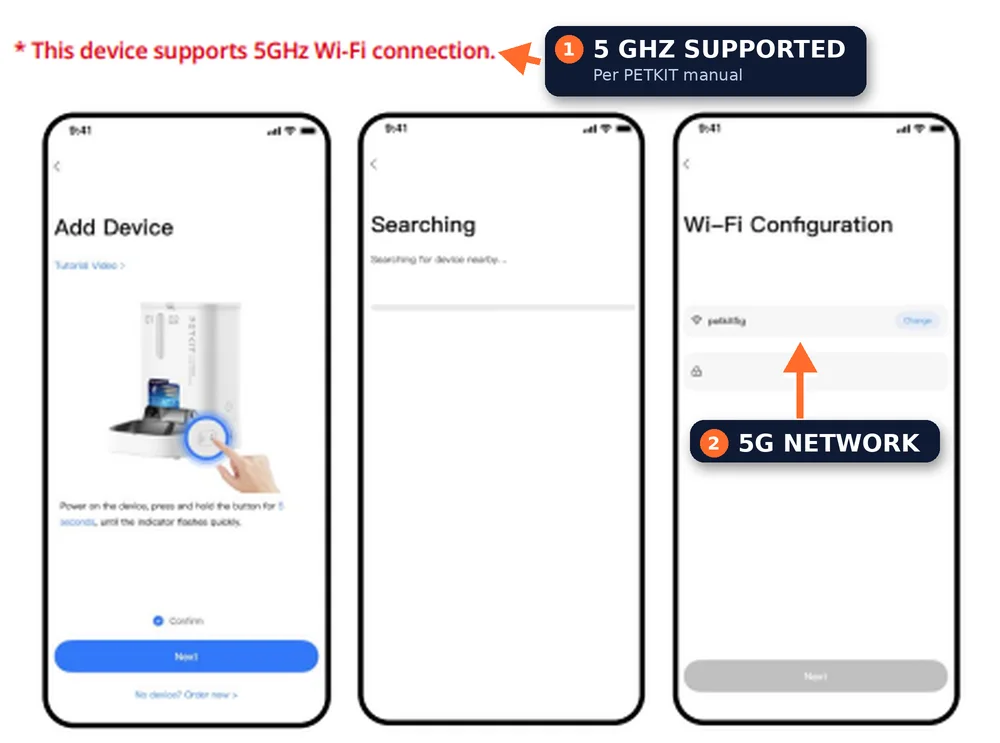
PETKIT YumShare Dual-hopper 2 with cameraDual-band (2.4 GHz & 5 GHz)Updated camera radio supports 5 GHz app binding
PETKIT YumShare Solo 2Dual-band (2.4 GHz & 5 GHz)Verify exact sub-model code on base label

Brands change specs between revisions, so the model number on the underside of your feeder matters more than the product name.
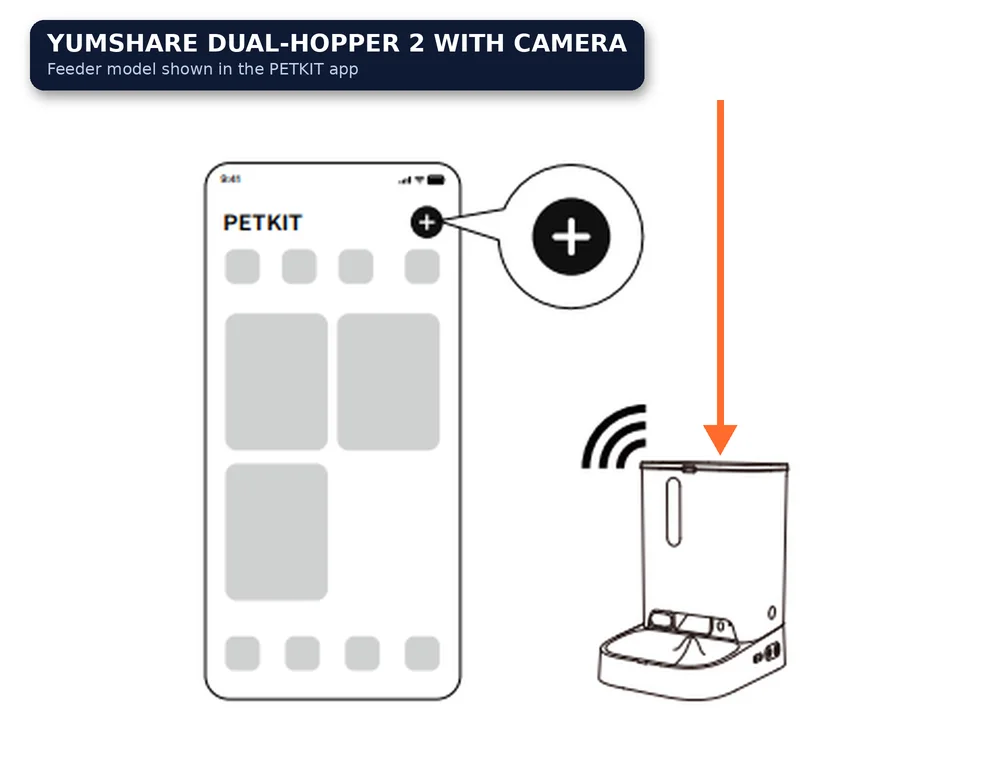
PETKIT app home screen with the plus button highlighted next to a Wi-Fi connected YumShare Dual-hopper 2 with camera feeder drawing
Source: PETKIT
PETKIT manual page for the YumShare Dual-hopper 2 with camera stating 5GHz Wi-Fi support, with three app setup screens and the 5G network labelled
Source: PETKIT

Why a Dual-Band Router Makes It Worse

Most routers broadcast both bands under a single network name and move devices between them automatically (often called band steering). That works smoothly for phones and laptops, but causes pairing timeouts on single-band IoT hardware. During pairing, your phone may sit on 5 GHz while the feeder only sees 2.4 GHz, or the router may push the feeder to a band it cannot use. Petlibro’s own support pages recommend splitting dual-band networks into different names for this reason.

  • Pairing fails at the last step. The phone and feeder are on different bands, so the app cannot find the device.
  • Connection drops later. The router moves the feeder to a band it handles badly.
  • Only the feeder fails. Other devices on your network stay online, because they tolerate band changes.

For the other half of the problem, see our guide to the Petlibro RFID feeder setup and troubleshooting, which covers pairing delays.

How to Fix a 5GHz WiFi Pet Feeder Connection Problem

Work through the steps below in order. They keep your normal 5 GHz network intact for everything else.

  1. Step 1 — Find Your Feeder's Supported Band

    Start by confirming what your exact model supports.

    1. Find the model number on the underside of the feeder or on the box.
    2. Check Petlibro’s or PETKIT’s product or support page for that model. Petlibro lists the Granary (PLAF103) as 5GHz and 2.4GHz, while its Polar wet food feeder is 2.4GHz only.
    3. If the page does not say, assume 2.4 GHz.
  2. Step 2 — Split Your Router Into Two Network Names

    This stops the router and phone from choosing the wrong band.

    1. Log in to your router’s admin page.
    2. Give the 2.4 GHz and 5 GHz networks different names, such as HomeNet-2.4 and HomeNet-5.
    3. Turn off band steering while you set up, if your router has it.
    4. Make sure the 2.4 GHz network is not hidden.
  3. Step 3 — Join Your Phone to the 2.4 GHz Network

    The app pairs best when the phone and feeder are on the same network.

    1. Open your phone’s Wi-Fi settings and join the 2.4 GHz network.
    2. Keep the phone on that network for the whole setup.
    3. Open the Petlibro or PETKIT app and start adding the feeder.
  1. Step 4 — Keep the Network Plain and Short

    Odd network details are a common reason pairing fails.

    1. Use a network with no extra authentication, as PETKIT advises.
    2. Avoid special characters in the network name.
    3. Shorten the network name if it is very long.
  2. Step 5 — Improve the Signal and Test With a Hotspot

    Weak signal can look like a band problem.

    1. Move the feeder close to the router. Petlibro suggests within about 16 feet for its Air feeder.
    2. If it still fails, try a phone hotspot on 2.4 GHz, which Petlibro recommends as a test.
    3. If the hotspot works, the fault is in your router settings. If not, contact support.

Router Settings That Help (and Ones to Avoid)

  • Give each band its own name. Something like HomeNet-2.4 and HomeNet-5 makes the right choice obvious on your phone.
  • Disable band steering while you pair if your router offers it.
  • Keep the 2.4 GHz network plain. PETKIT says to use a network without extra authentication and without special characters in its name.
  • Avoid a very long network name. PETKIT lists an overly long name as a possible cause of failures.
  • Do not hide the 2.4 GHz network during setup, so your phone and the feeder can both see it.

If you are building out a camera, feeder and fountain setup, remember that other devices matter too: our smart pet device bundle guide notes that some cameras and fountains also need 2.4 GHz.

When to Stop Troubleshooting and Contact Support

If the feeder still will not join a plain 2.4 GHz network after you split the bands, move it close to the router and try a phone hotspot, which Petlibro suggests as a test. If it works on the hotspot, your router or network is the problem. If it fails everywhere, contact the brand with your model number. PETKIT asks for the serial number, place of purchase and order details; Petlibro lets you send feedback with device logs from its app.

If the feeder still will not join your network after these steps, our offline fix guide and PETKIT feeder not dispensing guide cover the next checks.

The bottom line: check your feeder’s supported band, split your router into two names, join your phone to the 2.4 GHz one and pair from there. You can turn the combined network back on afterwards if your router allows it. Petmonik will update this guide as brands add 5 GHz support; if you have a model we missed, tell us through our contact page.

Frequently Asked Questions

Why won’t my smart pet feeder connect to 5GHz Wi-Fi?

Many feeders only support 2.4 GHz. Petlibro’s Polar wet food feeder is documented as 2.4 GHz only, and PETKIT tells owners to use a 2.4 GHz network. If your router combines both bands under one name, the feeder and phone can also end up on different bands during pairing.

Do any pet feeders support 5GHz?

Some do. Petlibro lists 5GHz and 2.4GHz for the Granary (PLAF103), and some camera feeders list both bands. Specs vary by model and revision, so check your exact model before relying on 5 GHz.

Do I need to turn off 5GHz to set up a pet feeder?

Not permanently. Split the bands into two network names, or temporarily disable the 5 GHz network or band steering during setup, and pair the feeder while your phone is on the 2.4 GHz network. Many routers let you turn the combined network back on afterwards.

Is 2.4GHz or 5GHz better for a pet feeder?

2.4 GHz is usually better for a feeder because it travels farther and passes through walls better, and feeders send very little data. 5 GHz is faster, which can help a camera feeder that streams video.

How do I check which Wi-Fi band my phone is using?

Open your phone’s Wi-Fi settings and look at the network name. If your router uses one name for both bands, split them into two names first so the band is obvious. Some phones also show the band or frequency on the network details screen.

Sam Kerrow
Written by

Sam Kerrow

Lead Hardware & Pet Tech Editor

Sam Kerrow is the lead editor and smart pet technology researcher at Petmonik. Focusing on multi-pet households, RFID and AI selective feeders, smart hydration fountains, and pet telemetry data, Sam tests device reliability, firmware behavior, and practical troubleshooting for cat and dog owners.

Leave a Reply

Your email address will not be published. Required fields are marked *