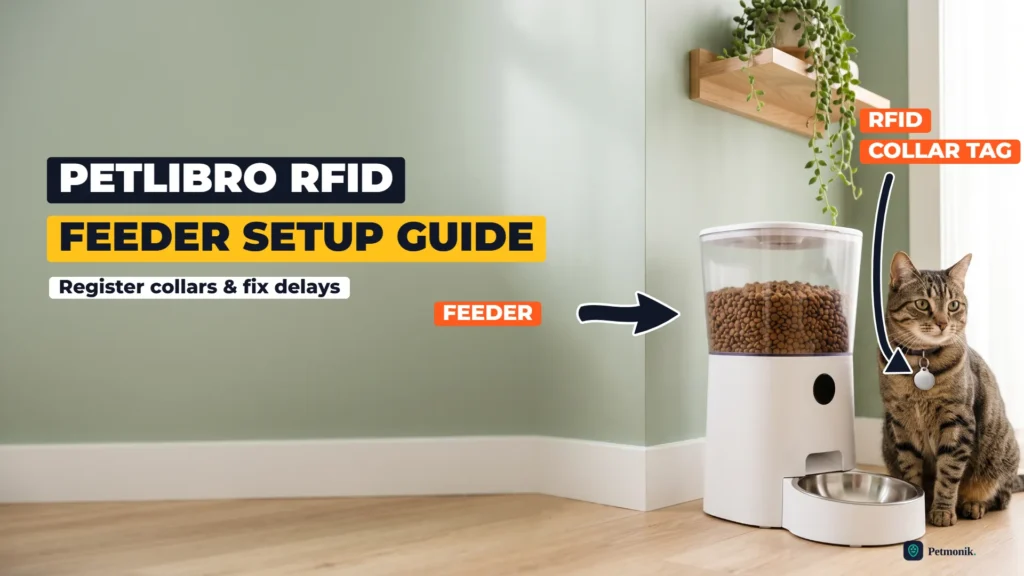
Register the collar tag, pair the app, and fix delayed-lid issues — that’s what this Petlibro RFID feeder setup guide covers for the One RFID Smart Feeder (PLAF301). Petlibro’s feeder keeps food thieves out by opening its lid only for the cat wearing the paired collar tag, but when setup goes wrong, you get a lid that opens late, closes slowly, or a feeder that misses meals. Below, we walk through the exact RF-pairing sequence, optimal antenna clearance, and proven troubleshooting fixes for real multi-cat households.
What You Need for This Petlibro RFID Feeder Setup Guide
The One RFID is a one-pet feeder: one tag opens one feeder.
The included RFID collar tag. It is the only thing the reader responds to. The feeder does not read implanted microchips or tags from other brands, and each feeder links to a single tag, so a second cat needs its own feeder. Replacement tags are sold separately.
A strong WiFi signal where the feeder will sit. Petlibro lists support for both 2.4 GHz and 5 GHz networks, but signal strength matters more than band. Petlibro’s first fix for disconnections is moving the feeder and router into the same room.
The latest Petlibro app. You need iOS 13 or later, or Android 7.0 or later. Setup uses Bluetooth, so switch it on before you begin.
The original power adapter. Three D batteries (not included) work as emergency backup only. Petlibro notes that WiFi and reset functions are unavailable on battery power.
Dry kibble between 2 and 15 mm. The feeder does not handle wet food, and flat or X-shaped kibble can jam the outlet.
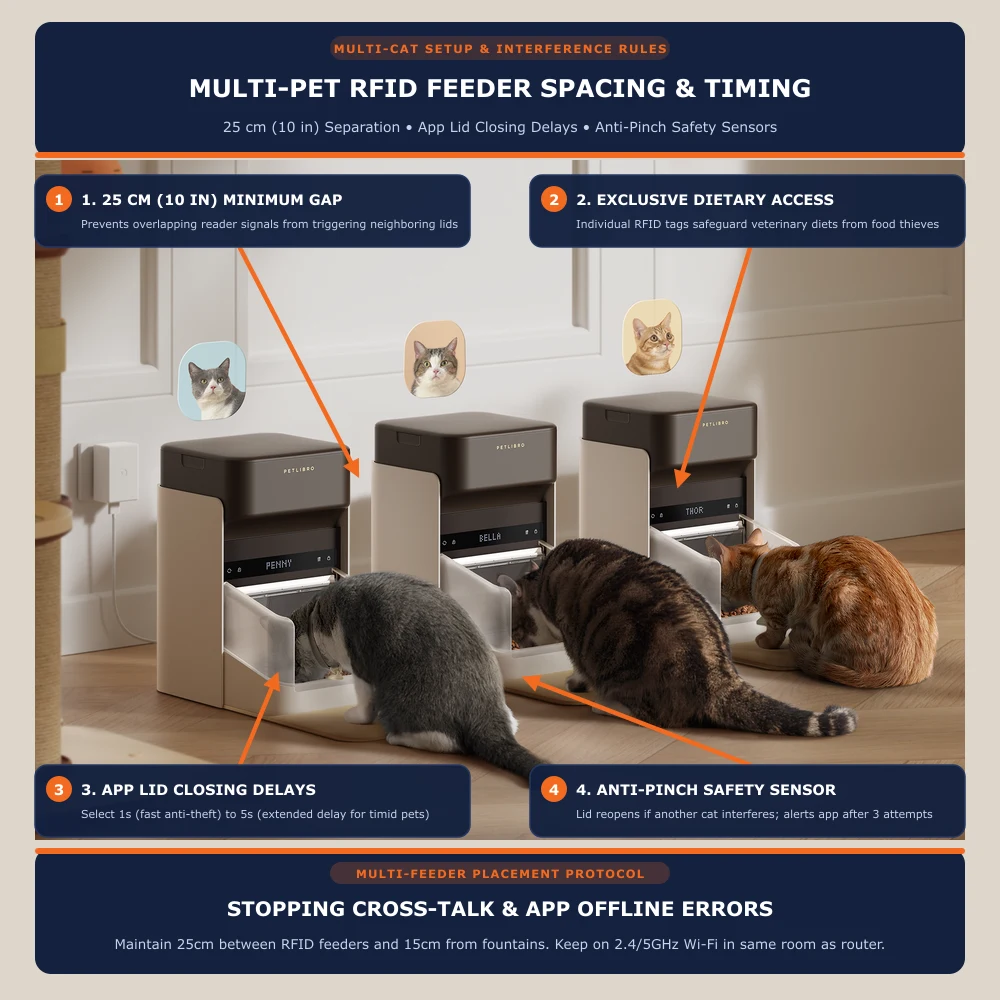
The right spot. Keep the feeder at least 25 cm (10 in) from any other RFID feeder and 15 cm (5.9 in) from a water fountain, indoors and away from metal objects and other electronics.
Step-by-Step Setup
1
Step 1: Seat the base and power up
Set the feeder body on the RFID reader base and press down until you hear a click. Petlibro lists an unseated base as a cause of tags that won’t register. Plug in the original adapter first; add backup batteries afterwards if you use them.
2
Step 2: Add the feeder in the Petlibro app
Log in to the Petlibro app (or create an account), make sure Bluetooth is on and choose the One RFID Smart Feeder from the list of devices to add. Keep your phone close to the feeder while it pairs. If Bluetooth pairing fails, the app offers a hotspot connection method as a fallback.
3
Step 3: Connect it to your WiFi
Enter your network name and password when the app asks. Do this with the feeder in its final spot rather than next to the router: a connection that only works beside the router won’t hold on the kitchen floor. Once it’s online, install any firmware update the app offers before you continue.
4
Step 4: Register the collar tag
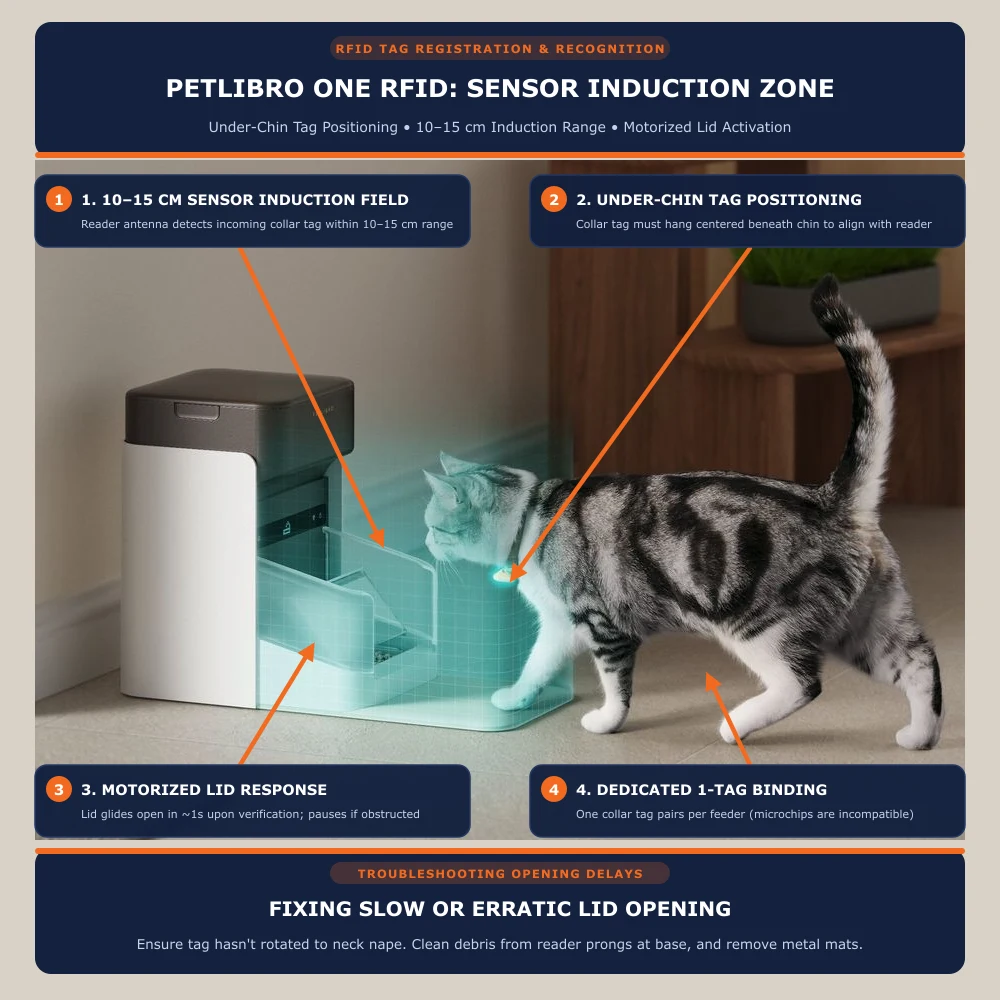
Follow the app’s prompt to add the collar tag and bind it to your pet’s profile. Hold the tag directly at the feeder’s RFID recognition area, close to the reader, until the app confirms.
5
Step 5: Fit the tag on your pet
Clip the tag to the included breakaway collar so it hangs under the chin, where it reaches the reader when your pet leans in to eat. The collar is designed to snap open, so check daily that the tag is still there. Petlibro says the feeder suits most cats and small dogs; pets that are too tall may not be recognised reliably.
6
Step 6: Set the lid mode for the first few days
In the app you can set the lid mode and adjust how fast and how soon the lid closes. Keeping the lid open for the first few days lets a wary pet get used to eating from the feeder; then switch to tag-only access.
7
Step 7: Build the feeding schedule and test it
Add each meal with a time and portion size: the feeder handles up to 10 meals a day, with portions as small as 1/12 cup. Finish with a manual feed from the app and watch your pet approach: the lid should open as the tag comes close and close again after your pet walks away.
Common Delay Problems & Fixes
In multi-pet households, lid response delays almost always trace back to four RF or mechanical bottlenecks, plus tag-binding hiccups. Work through the sub-steps in order and test after each one.
While you’re in the hopper, it’s worth checking the desiccant packet too — see our guide on how often to replace feeder desiccant to keep clumping and odor away.
1. The lid opens late, or not at all, when your pet arrives
Check the tag is on your pet and hanging under the chin, not twisted round to the back of the neck.
Move metal objects and other electronics away from the feeder, including metal mats and nearby appliances.
If you run more than one RFID feeder, space them at least 25 cm (10 in) apart.
Unplug the feeder, lift it off the base and clear any food or debris from the RFID reader prongs and the jack at the base. Reseat it until it clicks.
Still slow? Move the feeder to another part of the room to rule out interference you can’t see.
Source: PETLIBRO
2. The lid stays open too long after your pet walks away
Closing speed and time are adjustable in the app. A long-term review at Cats.com found the fastest setting closes in about one second, but quotes an owner whose lid took seven to nine seconds even then, so check the hardware too.
In the app, open the feeder’s lid settings and choose the fastest closing speed and shortest closing time.
Clear interference as in fix 1. Petlibro’s own guidance for a slow-closing lid starts there.
Remove the bowl lid, unlock the feeder and press the lid release button. Check that the lid’s pivot turns smoothly without catching.
If another pet sits in the way, the lid reopens briefly to avoid injury and tries again. After three failed attempts it stops and sends an app notification; once the path is clear, operate the lid from the app to reset it.
Source: PETLIBRO
3. Meals arrive late or not at all
Make sure the feeder is running on the original cord and adapter. If batteries are installed, remove them and check again.
Restart it: unplug the feeder, remove any batteries, wait about 20 seconds and plug it back in.
Open the schedule in the app and confirm each meal is switched on with the right time and portion.
If meals still go missing, reset the feeder: with it unlocked, hold the Reset button until you hear “reset successfully” and then “ready for Wi-Fi connection”. Reconnect it to WiFi and set up your feeding schedule again.
4. The app shows the feeder offline, or updates arrive late
Scheduled meals keep running during a WiFi outage, but remote feeding, notifications and feeding records depend on the connection.
Move the feeder or router so they are in the same room, with no walls in between.
Restart the feeder as in fix 3, step 2.
Log out of the Petlibro app and log back in.
If it keeps dropping, reset the feeder and reconnect it. If Bluetooth pairing fails during reconnection, use the app’s hotspot connection method instead.
5. The collar tag won’t register
Power the feeder from the original adapter, not batteries, and clear the reader prongs as in fix 1, step 4.
Log out of the app and back in, then reset the feeder and reconnect it to WiFi.
Start pairing again, holding the tag directly at the recognition area until the app confirms.
When to Contact Petlibro Support
Contact Petlibro once you have worked through the fixes above and:
the feeder shows a “Rotor Stuck” or “Counting Sensor Error” message that comes back after cleaning and a restart;
the lid still won’t open or close fully after you have cleared interference and checked the pivot;
the collar tag won’t register after a reset, or the tag is lost or damaged;
the feeder won’t power on with the original adapter.
Open a ticket through Petlibro’s contact form; Petlibro says it replies within 48 hours, Monday to Friday. The form asks for your model number (PLAF301; some listings use AF301) and order ID, so have those ready along with your app and firmware versions and a short video of the problem. Petlibro’s One RFID help pages also include setup videos.
The bottom line: most One RFID delays trace back to three things: a base that isn’t seated, interference near the reader and a weak WiFi link. Rule those out before you blame the feeder. Petmonik will keep this guide updated as Petlibro changes its app and firmware, and if a fix here didn’t work for you, tell us through our contact page.
How do I register the collar tag on a Petlibro One RFID feeder?
Add the feeder in the Petlibro app with Bluetooth switched on, connect it to WiFi, then follow the app’s prompt to add the collar tag and bind it to your pet’s profile. Hold the tag directly at the feeder’s RFID recognition area, close to the reader, until the app confirms. Then clip it to the breakaway collar so it hangs under your pet’s chin.
Why does my Petlibro RFID feeder lid open late or not at all?
The usual causes are interference or a dirty or unseated reader. Check the tag hangs under your pet’s chin, move metal objects and other electronics away, and keep RFID feeders at least 25 cm (10 in) apart. Then unplug the feeder, clear food and debris from the reader prongs and the jack at the base, and reseat it until it clicks.
Can the Petlibro One RFID read a microchip or work for more than one cat?
No. It responds only to its included RFID collar tag, not implanted microchips or tags from other brands, and each feeder links to a single tag. A second cat needs its own feeder, and replacement tags are sold separately.
Does the Petlibro One RFID keep feeding when WiFi drops?
Scheduled meals keep running during a WiFi outage, but remote feeding, notifications and feeding records depend on the connection. If the app shows the feeder offline, put the feeder and router in the same room, restart the feeder, and log out and back in to the app. If it keeps dropping, reset the feeder and reconnect it.
When should I contact Petlibro support about my RFID feeder?
Contact Petlibro after working through the fixes if a Rotor Stuck or Counting Sensor Error message keeps returning, the lid still won’t open or close fully, the tag won’t register after a reset or is lost or damaged, or the feeder won’t power on with the original adapter. Petlibro says it replies within 48 hours, Monday to Friday, and asks for your model number (PLAF301) and order ID.
Sam Kerrow is the lead editor and smart pet technology researcher at Petmonik. Focusing on multi-pet households, RFID and AI selective feeders, smart hydration fountains, and pet telemetry data, Sam tests device reliability, firmware behavior, and practical troubleshooting for cat and dog owners.