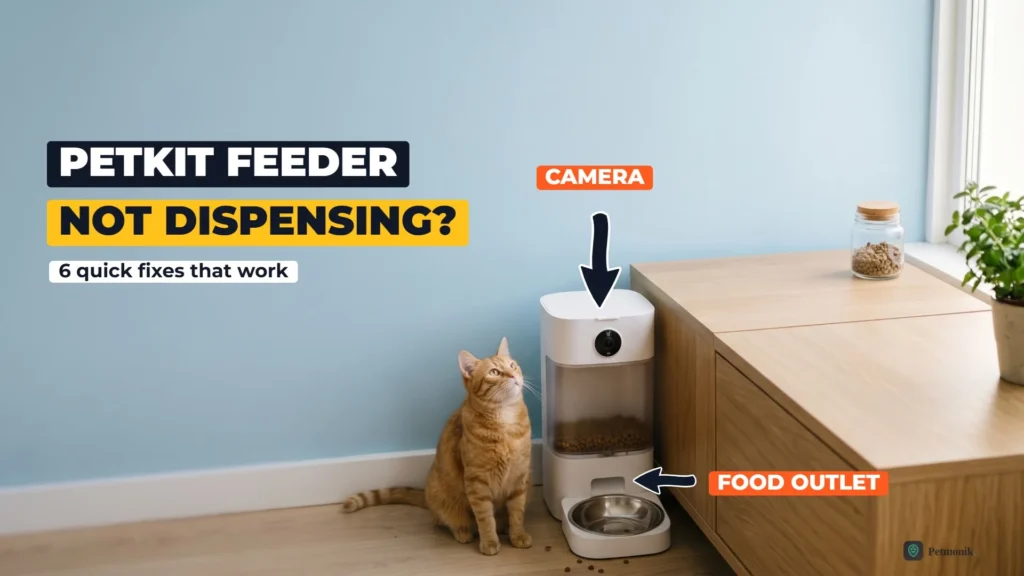
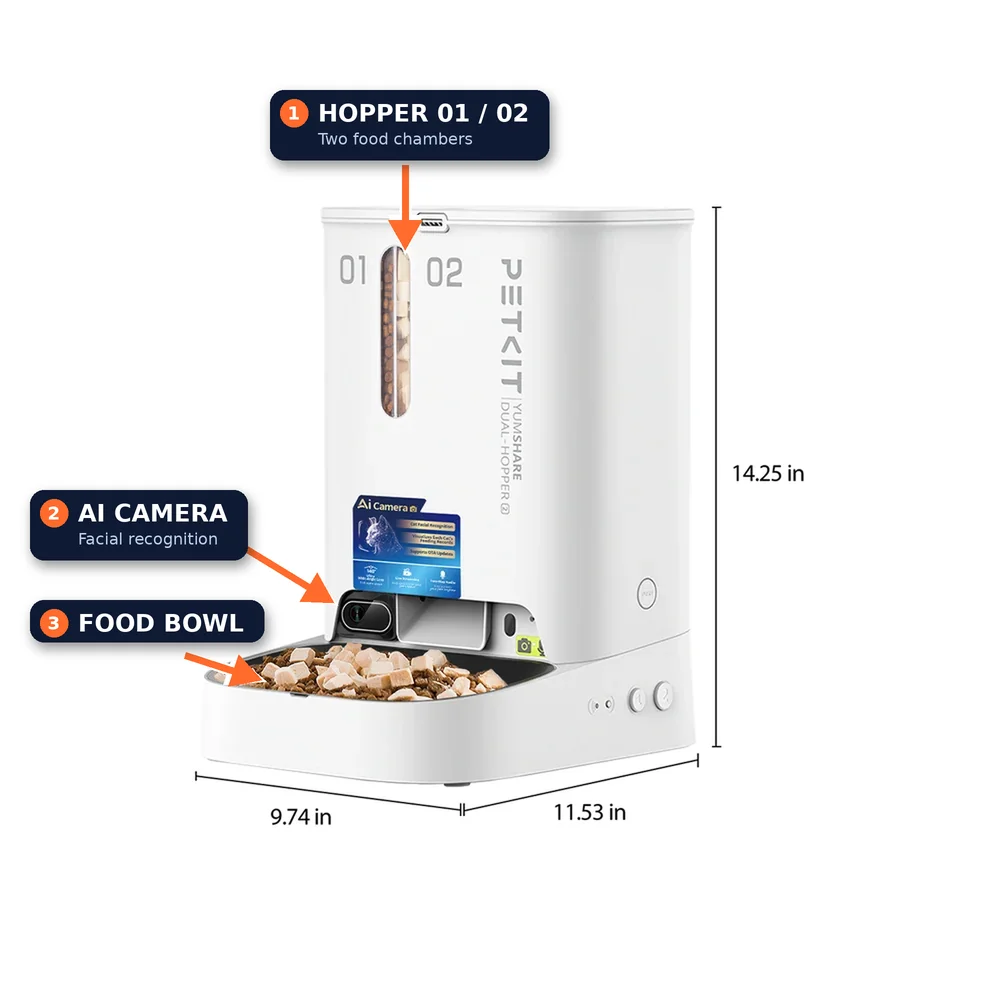
If your PETKIT camera feeder has stopped dispensing, the cause is usually mundane: kibble that’s too big, a clogged impeller, a weak 2.4 GHz connection, or a feeder that needs a clean restart. PETKIT’s camera feeders, led by the YumShare Dual-hopper with Camera (P591), are meant to drop each meal on schedule while you watch on the live feed — so an empty bowl is obvious right away. Below is our PETKIT feeder not dispensing fix: six diagnostic steps ordered from fastest mechanical clearance to full 2.4 GHz network re-pairing.
Source: PETKIT
PETKIT Feeder Not Dispensing Fix: Why It Happens
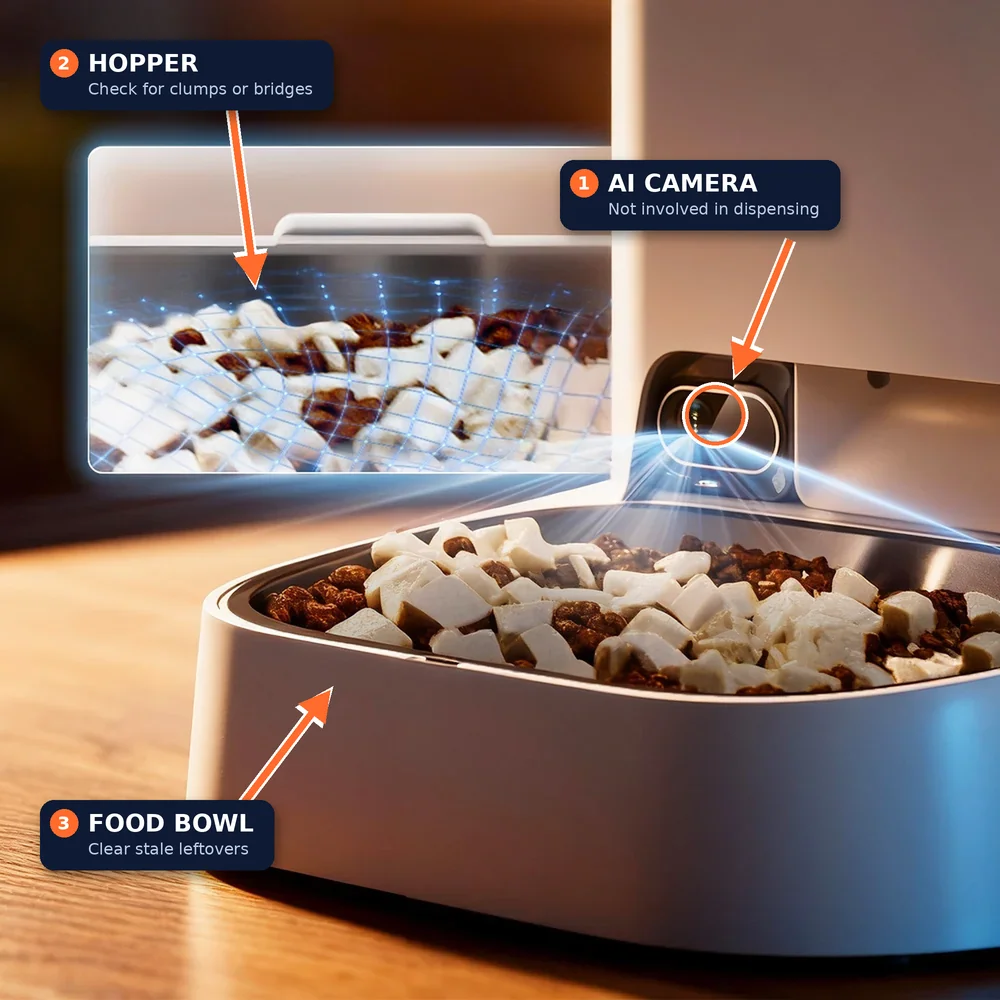
The camera itself doesn’t jam and plays no part in dispensing. When a camera feeder stops feeding, it’s almost always one of these:
Food that doesn’t fit. PETKIT limits dry kibble to 12 mm (0.47 in) and freeze-dried pieces to 9 mm (0.35 in). Larger or oddly shaped pieces bridge over the outlet. Only dry pet food belongs in the hopper.
Moisture. Humid kibble clumps and sticks. The lid holds a desiccant compartment and a sealing ring for this reason, and the desiccant needs replacing.
A blocked impeller or vanes. Crumbs and oil from the food build up in the dispensing parts over time.
Power. The feeder needs its original 6V adapter. Four D batteries are a backup, not a main power source: PETKIT rates them for up to 60 days of emergency feeding, so a loose adapter plus tired batteries can quietly stop meals.
Connectivity and software. The feeder only works on 2.4 GHz WiFi. On PETKIT’s community forum, owners of the YumShare Dual-hopper and the Gemini feeder report a “System error. Feeder stopped.” message, where scheduled meals fail while manual feeding still works. PETKIT’s first-line advice for that is to check power, restart and update the firmware.
PETKIT says the feeder has anti-blockage technology and sends an app alert when food jams, so check your notifications before you start taking it apart. On the Dual-hopper, also check which hopper failed: each dispenses 1 to 10 portions per meal and is set separately, so one empty or jammed hopper can look like a total failure.
Fix 1 — Check and Clear the Hopper
Start here: a jam in the hopper or impeller is the most common reason a PETKIT feeder runs but drops nothing.
Unplug the adapter and take out the backup batteries before you touch the dispensing parts.
Hold the PUSH buttons on both sides of the main unit and lift to remove the hopper.
Empty the food and check it against PETKIT’s limits: 12 mm for dry kibble, 9 mm for freeze-dried. Take out anything larger, and any treats or wet food.
Pull out the food-dispensing vanes, rotate the impeller cover clockwise to remove it and take out the impeller.
Wash the parts with mild detergent using a sponge or soft cloth, never a hard tool. Wipe the main unit with a damp cloth only; it must not be soaked or submerged.
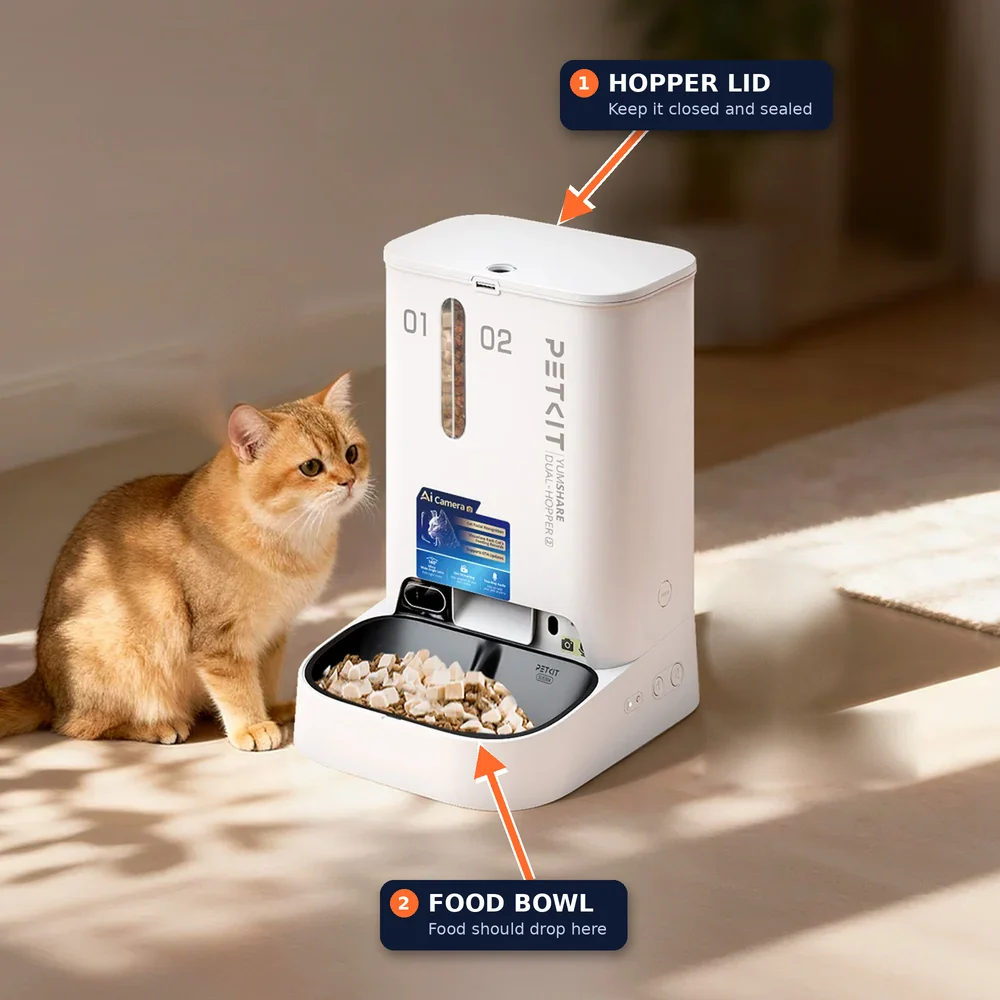
Replace the desiccant in the lid compartment, laying it out evenly, and check the sealing ring is seated so humid air can’t clump the food.
Let everything dry completely, reassemble, refill with dry food and hold the hopper’s feed button to check that food drops.
Fix 2 — Camera Calibration Reset
PETKIT doesn’t offer a calibration tool for the camera. What owners call a camera reset is restarting the camera so the live view and recordings work again, which also shows whether the feeder is online. Do this when the live feed freezes just as a meal should drop.
Check the indicator light: steady green means online with the camera on; steady white means online with the camera off; a slow white flash means offline (go to Fix 3).
In the PETKIT app, switch the camera off, wait a few seconds and switch it back on.
Check the privacy settings. Privacy mode and custom detection periods can stop the camera or recording during the hours you set.
Wipe the lens with a dry, soft cloth; food dust can hide the bowl from view.
Missing video history isn’t a fault: full playback needs a PETKIT Care+ subscription once the trial ends.
Fix 3 — WiFi and App Reconnection
Scheduled meals depend on the feeder staying connected and in sync with the app.
Make sure your router’s 2.4 GHz band is switched on. The feeder doesn’t support 5 GHz.
Read the indicator: a slow white flash means not connected; a quick flash means it’s connecting.
Stand next to the feeder with your phone on the same 2.4 GHz network you’re connecting it to.
In the PETKIT app, tap + to add the YumShare feeder.
Hold the WiFi setup button for 5 seconds until the indicator flashes rapidly, tap Next and wait for the app to confirm.
Once connected, check that your feeding schedule is still there and the times are right.
Fix 4 — Firmware Update
PETKIT releases firmware updates on an irregular schedule and tells owners to install them through the app.
Plug the feeder into its adapter and make sure it’s online (steady white or green light).
Update the PETKIT app itself from your phone’s app store.
Open the feeder in the app, go to its device settings and check the firmware version for an available update.
Install the update and don’t unplug the feeder until the app confirms it’s finished.
Run a manual feed and check one scheduled meal to confirm it dispenses.
Fix 5 — Motor Reset Procedure
PETKIT doesn’t publish a separate motor reset. Its documented restart, cutting all power, is the closest equivalent, and it also tells you whether the motor runs.
Unplug the adapter.
Remove the backup batteries.
Wait at least 30 seconds.
With the hopper removed, turn the impeller by hand and clear anything wedged in it.
Reinstall the batteries, plug the adapter back in and press a feed button. If the motor runs but nothing drops, go back to Fix 1. If it stays silent, contact support.
Fix 6 — Factory Reset as Last Resort
PETKIT’s YumShare manual doesn’t include a button-based factory reset. The closest option is removing the feeder from your account and setting it up again from scratch.
Screenshot your feeding schedules and settings so you can recreate them.
In the PETKIT app, open the feeder’s settings and remove the device.
Cut all power as in Fix 5, steps 1 to 3.
Add the feeder again: tap +, hold the WiFi setup button for 5 seconds and follow the prompts on your 2.4 GHz network.
Recreate your schedules, then test a manual feed and one scheduled meal.
Source: PETKIT
When to Contact PETKIT Support
Contact PETKIT once you’ve worked through the six fixes and:
If the jam turns out to be debris rather than kibble, ants may be involved — our ant-proof automatic feeder guide covers the fix.
the motor stays silent when you press a feed button, with the original adapter plugged in;
jam alerts keep coming even with a clean impeller and kibble within the size limits;
“System error. Feeder stopped.” returns after a firmware update and a fresh setup;
any part is cracked, warped or physically damaged.
Start with PETKIT’s support site. At the time of writing, PETKIT’s product page also lists a US phone line, +1 (888) 851-2770, open 9am to 12pm and 1pm to 6pm Central time, and a two-year warranty on the YumShare Dual-hopper. Have your model number (P591), firmware version and a short video of the feeder trying to dispense ready.
One warning: some forum owners describe fixing the system error by opening the feeder and disconnecting a small internal battery. That means taking apart the main unit, so let PETKIT or your retailer handle it while you’re under warranty.
The bottom line: most PETKIT dispensing failures come down to food that’s too big or too damp, a dirty impeller or a feeder that has dropped off WiFi. Start with Fixes 1, 3 and 5; they cover the most common causes. Petmonik will update this guide as PETKIT releases new firmware; if something here didn’t work for you, tell us through our contact page.
Warranty Tip: If your feeder reports a persistent motor fault that cleaning does not resolve, contact official PETKIT support directly under your 12-month manufacturer warranty rather than opening the sealed motor base.
Frequently Asked Questions
Why is my PETKIT feeder not dispensing food?
It is usually food that doesn’t fit (PETKIT limits dry kibble to 12 mm and freeze-dried pieces to 9 mm), damp kibble that clumps, a blocked impeller, weak power or a lost 2.4 GHz WiFi connection. The camera plays no part in dispensing. Check your app notifications for a jam alert first, and on the Dual-hopper check which hopper failed.
How do I clear a jam in a PETKIT feeder?
Unplug the adapter and remove the backup batteries, then hold the PUSH buttons on both sides and lift off the hopper. Empty the food, remove the vanes, turn the impeller cover clockwise and take out the impeller. Wash the parts with mild detergent and a soft cloth, replace the desiccant, let everything dry completely, then reassemble and hold the feed button to test.
Why does my PETKIT feeder keep going offline, and how do I reconnect it?
The YumShare Dual-hopper with Camera covered in our guide only works on 2.4 GHz WiFi, so make sure that band is on at your router. A slow white flash on the indicator means it is not connected. Stand next to the feeder, tap + in the PETKIT app, hold the WiFi setup button for 5 seconds until the indicator flashes rapidly, and follow the prompts.
Does a PETKIT feeder have a factory reset or motor reset?
PETKIT doesn’t publish a separate motor reset or a button-based factory reset for the YumShare. The closest motor reset is cutting all power: unplug the adapter, remove the batteries and wait at least 30 seconds. The closest factory reset is removing the feeder from your account and setting it up again, so screenshot your schedules first.
What does the PETKIT ‘System error. Feeder stopped.’ message mean?
Owners on PETKIT’s community forum report it on the YumShare Dual-hopper and the Gemini feeder, with scheduled meals failing while manual feeding still works. PETKIT’s first-line advice is to check power, restart and update the firmware. If it returns after a firmware update and fresh setup, contact PETKIT support rather than opening the unit while it is under warranty.
Sam Kerrow is the lead editor and smart pet technology researcher at Petmonik. Focusing on multi-pet households, RFID and AI selective feeders, smart hydration fountains, and pet telemetry data, Sam tests device reliability, firmware behavior, and practical troubleshooting for cat and dog owners.