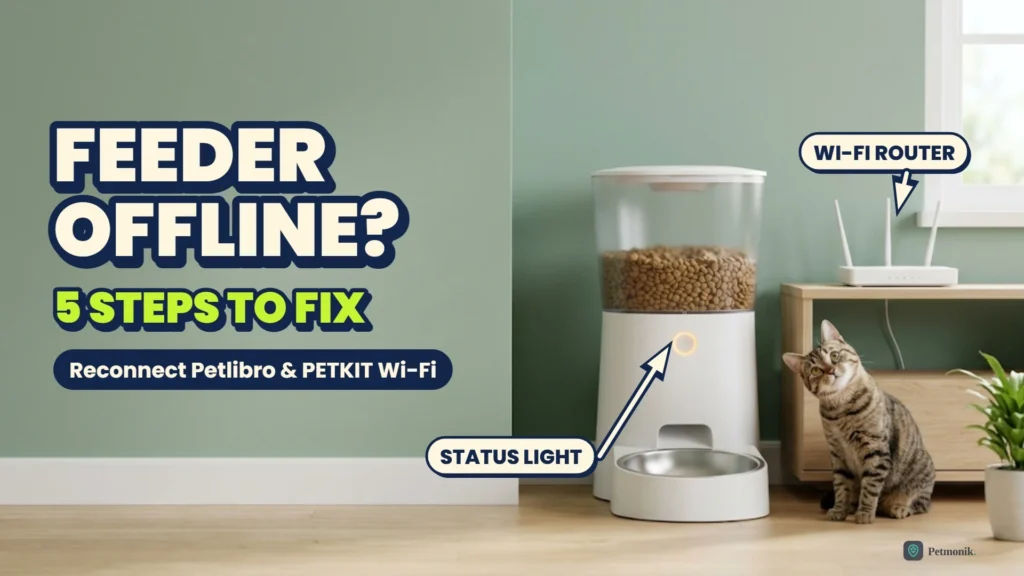
It is 7 a.m., you are already out the door, and your phone shows “Device Offline” for the feeder that was meant to serve breakfast ten minutes ago. Now you have no idea whether your cat ate. If you need an automatic pet feeder offline fix, the reassuring news is that a dropped connection is rarely a dead feeder. The five diagnostic steps below move logically from non-destructive Wi-Fi band and signal checks to a clean power cycle and full factory re-pairing. Exact buttons and light patterns vary by model, so keep your manual close.
Quick Summary: Reconnect an Offline Feeder
Most common cause: the feeder is on, or being pushed to, the wrong Wi-Fi band. Petlibro and PETKIT both document 2.4 GHz as the safe choice.
Fastest fix: give your 2.4 GHz network its own name, move the feeder closer to the router, then power cycle it.
Last resort: remove the feeder from the app and add it again. Screenshot your schedules first.
Before you reset anything, it helps to know what you are fighting. Across Petlibro and PETKIT smart feeders, an “offline” alert almost always comes down to five network or power triggers:
The wrong Wi-Fi band. PETKIT tells owners to use a 2.4 GHz network. Petlibro recommends splitting dual-band routers into separate names so the feeder is not switched between bands.
A difficult network name or login. PETKIT says the network should have no extra authentication, no special characters in its name, and a name that is not too long.
Weak signal. Feeders usually sit in a kitchen or utility room, often the worst Wi-Fi spot in the house. Petlibro advises moving the feeder closer and clearing obstacles.
Power problems. Loose adapters and tired backup batteries can look like a connection fault.
A stuck connection state. Sometimes the feeder simply needs a clean restart or a fresh pairing.
If your feeder is a PETKIT model, also check out our related fix for a PETKIT feeder that is not dispensing, since the two problems often overlap.
Petlibro vs. PETKIT: Offline Fixes Side by Side
Petlibro
PETKIT
Recommended Wi-Fi band
2.4 GHz; split dual-band routers into separate names and test each band
2.4 GHz network with no extra login
Network name advice
Use different names for each band
Short name, no special characters
Power cycle
Switch off the battery switch, unplug, wait about 30 seconds, restore power
Unplug the adapter, run on battery briefly, then reconnect
Reset
Hold the Reset button on the back for 3 seconds on supported models
Remove the device in the app and add it again
While offline
Remote control and alerts pause
Feeder keeps dispensing; app notifications pause
Extra check
Try a mobile hotspot to test the feeder
Make sure feeder and app use the same mode (SMART or AP)
Comparison of Petlibro and PETKIT Wi-Fi recovery protocols. Exact button holds vary by hardware generation.
Step 1 — Read the Indicator Light and Check Power
Start with the feeder itself, because the light tells you what it is really doing.
Confirm the feeder is powered on and the Wi-Fi indicator behaves normally. On PETKIT camera feeders a slow white flash means offline, and a quick flash means it is connecting.
Check the adapter is seated firmly and any backup batteries are fresh.
If the light shows it is mid-reconnect, wait a couple of minutes. Petlibro notes that a brief network interruption can show as offline for a short time.
Step 2 — Confirm a Clean 2.4 GHz Network
This fix clears more offline feeders than any other.
Open your router settings and make sure the 2.4 GHz band is switched on.
If both bands share one name, split them into two names, as Petlibro recommends, so the feeder is not switched between bands.
Check the 2.4 GHz network name is short, with no special characters, and that the network does not need a web login, as PETKIT advises.
Test the 2.4 GHz and 5 GHz networks separately to see which holds the connection.
Step 3 — Improve the Signal Where the Feeder Sits
Weak signal causes many repeat drops.
Move the feeder closer to the router and clear large obstacles, such as metal cabinets or appliances, from the path.
Run a hotspot test: connect the feeder to your phone’s mobile hotspot, as Petlibro suggests. If it stays online, your home network is the problem.
Once it is stable, move the feeder back in small steps. If it drops again, add a mesh node or reposition the router.
Step 4 — Power Cycle the Feeder
A clean restart clears many stuck connections without touching your settings.
Unplug the adapter and, on Petlibro models, switch off the battery switch.
Wait about 30 seconds.
Restore power and give the feeder a few minutes to rejoin your Wi-Fi on its own.
On PETKIT, check the feeder and the app are using the same mode (SMART or AP) before you try again.
Step 5 — Reset and Re-pair the Feeder
If nothing above worked, set the feeder up again from scratch.
Screenshot your feeding schedules and settings so you can recreate them.
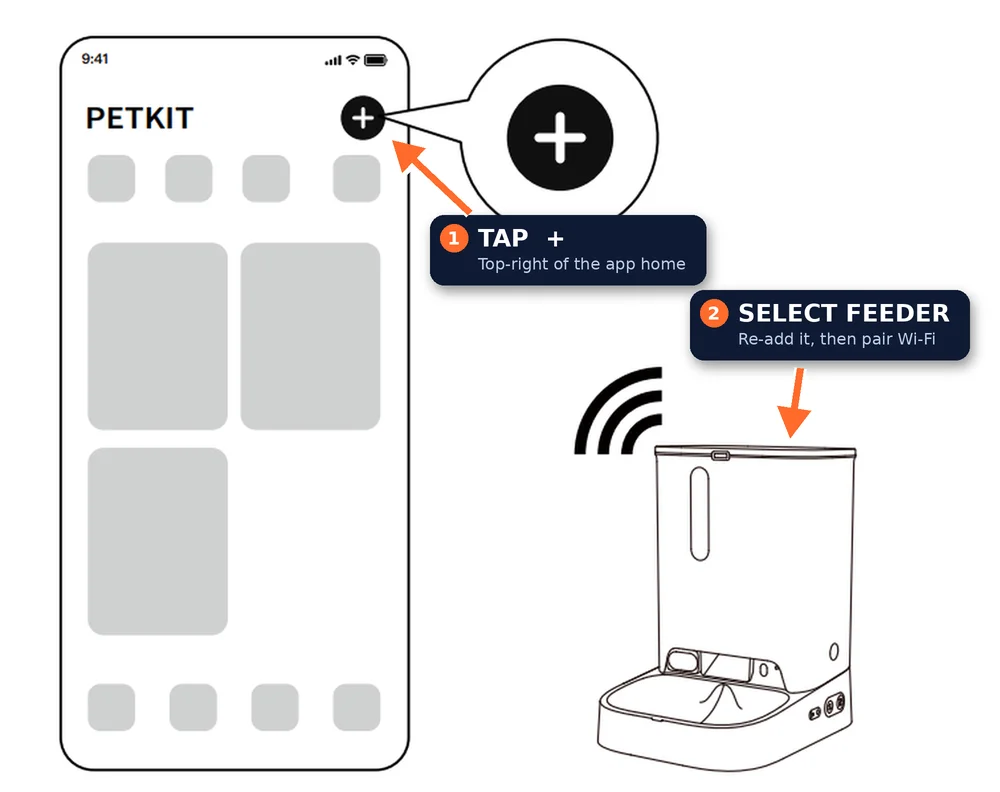
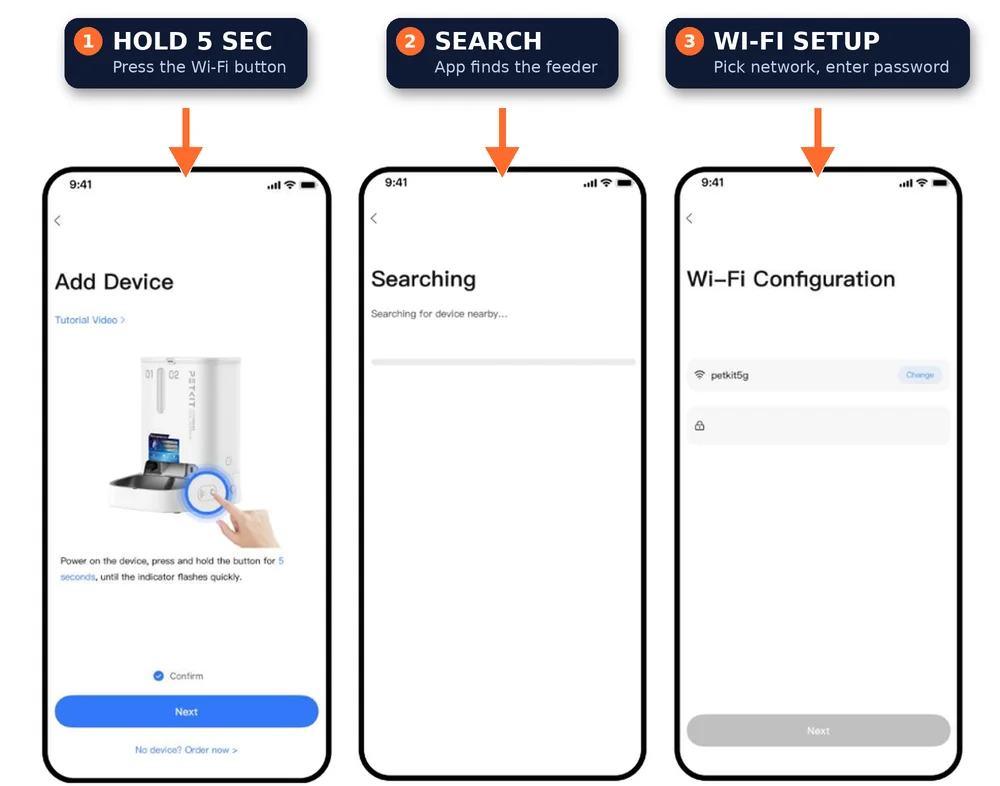
Petlibro: hold the Reset button on the back for 3 seconds, then add Wi-Fi again in the app. PETKIT: remove the device in the app, then add it again and follow the prompts on your 2.4 GHz network.
Rebuild your schedules, then run a manual feed and watch one scheduled meal to confirm it works.
If it still drops, submit feedback with device logs through the Petlibro app, or contact PETKIT support.
Source: PETKITSource: PETKIT
How to Stop Your Pet Feeder Going Offline Again
Give the feeder a stable network. Keep a dedicated 2.4 GHz name if your router allows it, so the feeder never has to guess.
Improve coverage near the kitchen. A mesh node or a router closer to the feeder helps more than any app setting.
Keep backup power fresh. PETKIT rates four D batteries as emergency power on its Dual-hopper, and Petlibro feeders use battery backup too. Replace them on a schedule.
Turn on offline alerts. A “device offline” notification is the earliest warning you will get.
Update the app and firmware. Install updates when the app offers them, while the feeder is online.
Contact the manufacturer when the feeder will not hold a connection after a hotspot test and a full re-pair, or when the light pattern never changes even with power restored. Petlibro lets you send feedback with device logs from inside its app, which gives support something concrete to work with. For PETKIT, have your serial number, place of purchase and order details ready. Both brands cover hardware faults under warranty, so keep your receipt.
The bottom line: most offline feeders recover once the network band, signal and power are sorted. Work through Steps 1 to 3 first, because they cover the usual causes without wiping your schedules. Petmonik will update this guide as the brands change their apps and firmware; if a step did not work for your model, tell us through our contact page.
Why does my automatic pet feeder keep going offline?
The most common causes are the wrong Wi-Fi band, a weak signal at the feeder, power problems, or a stuck connection. Use a 2.4 GHz network, move the feeder closer to the router and power cycle it. If it still drops, remove it from the app and add it again.
Will my feeder still dispense food when it is offline?
PETKIT states that its feeder continues dispensing while offline, but app notifications and status updates stop until it reconnects. Petlibro does not state this as clearly, so check your model manual before relying on it. Keep backup batteries fitted in case of a power cut.
Do Petlibro and PETKIT feeders work on 5 GHz Wi-Fi?
Both brands point owners to 2.4 GHz for reliable setup, and some PETKIT models support only 2.4 GHz. A few newer feeders list 5 GHz support, so check your model specifications. When in doubt, use 2.4 GHz.
How do I reset a Petlibro feeder that shows offline?
Power the feeder down for about 30 seconds, then restore power. If it stays offline, hold the Reset button on the back for 3 seconds, then set up Wi-Fi again in the Petlibro app. Reset steps differ by model, so confirm in your manual.
How do I know if the problem is my router or my feeder?
Connect the feeder to a mobile hotspot, as Petlibro suggests. If it connects there, the fault is in your home network, such as the band, name or signal. If it still fails, the feeder or its setup is the likely cause, so contact support.
Sam Kerrow is the lead editor and smart pet technology researcher at Petmonik. Focusing on multi-pet households, RFID and AI selective feeders, smart hydration fountains, and pet telemetry data, Sam tests device reliability, firmware behavior, and practical troubleshooting for cat and dog owners.